


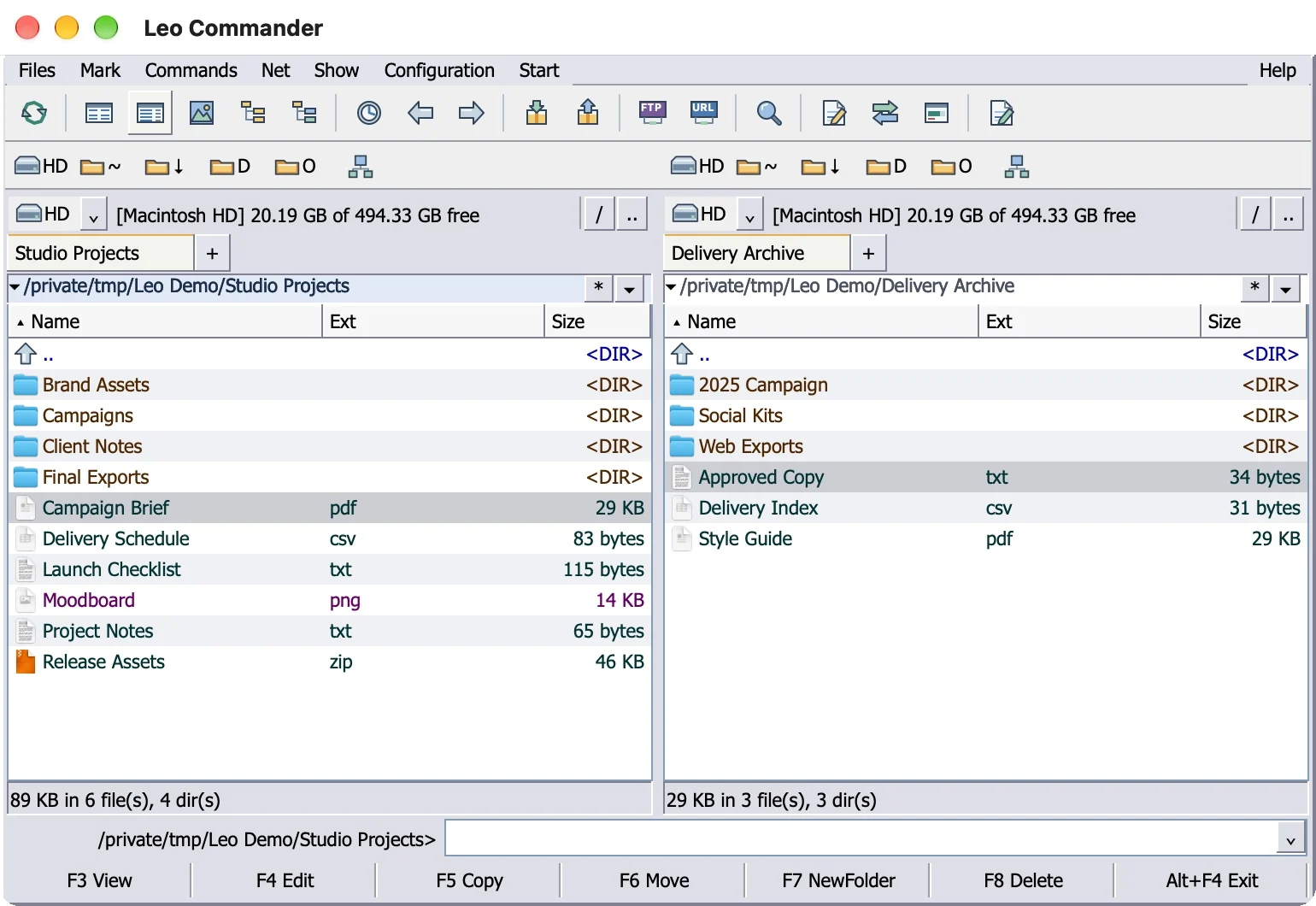
A dual-pane file manager for Mac shows two folders side by side in one window and copies or moves files from the active panel to the other with one key, usually F5 or F6. Finder has no
The difference comes down to the target. In Finder you pick a destination for every copy. In a two-panel app the destination is already open on the other side, so a copy is one keystroke.
What is a dual-pane file manager?
A dual-pane (or two-panel) file manager splits one window into two file lists. One panel is active: it holds the cursor and is the source of every command. The other panel is passive and is the default target, so copy and move need no destination dialog.
The classic design adds two more pieces: a command line under the panels and a row of
Finder's column view (⌘3) is not the same thing. Columns show the folders along one path, so you still cannot keep Downloads on one side and a backup drive on the other.
A short history of the orthodox file manager
John Socha wrote Norton Commander for MS-DOS, and Peter Norton Computing released it in 1986. The last version, 5.51, shipped in 1998. Wikipedia describes it as the prototypical orthodox file manager, and it was cloned many times over.
- Total Commander for Windows first appeared in 1993 as Windows Commander and took its current name in 2002, after Microsoft pointed out that "Windows" was its trademark.
- Midnight Commander, started by Miguel de Icaza in 1994, runs on Unix-like systems, macOS included.
- Far Manager, Volkov Commander, Krusader and Double Commander follow the same pattern.
The keys survived every port. In orthodox file managers F5 copies from the active panel to the inactive one and F6 moves, which is why a Total Commander user hits F5 on a Mac by reflex.
Can Finder do dual pane?
No. Finder has no two-panel mode. Double-click a folder and its contents usually replace what the window showed, so one Finder window holds one location at a time. Tabs hold more locations, but a window shows one tab at a time.
macOS still offers four ways to get two folders on screen. Each one works. None gives you a passive target panel or a one-key copy. (Mac keys used below: Command ⌘, Option ⌥, Shift ⇧, Control ⌃.)
1. Two Finder windows side by side
This works on every macOS version.
- In Finder, press ⌘N to open a new Finder window.
- Drag each window by its top edge to one half of the screen, then drag the window edges until the two windows sit side by side.
- Open the source folder on the left and the target folder on the right. ⇧⌘G opens Go to Folder when you know the path.
- Drag files from one window to the other. A drag into a folder on the same disk moves the files, and a drag to a different disk copies the files. Hold Option while dragging to copy, or hold Command while dragging to another disk to move.
2. Tile two Finder windows on macOS 15 Sequoia and later
Window tiling is available in macOS Sequoia 15 or later. On macOS 12 to 14, use the manual method above.
- Open two Finder windows with ⌘N.
- Click the first window, choose Window > Move & Resize, and pick the left half under Halves. From the keyboard, press Fn⌃← (Fn, Control and Left Arrow).
- Click the second window and press Fn⌃→ (Fn, Control and Right Arrow), or pick the right half from the same menu.
- Prefer the mouse? Drag a window to the left or right edge of the screen and release it when the highlighted area appears. You can also hold Option while dragging.
- To change how tiling behaves, open System Settings > Desktop & Dock and find the Windows section. The settings are "Drag windows to screen edges to tile", "Hold ⌥ key while dragging windows to tile" and "Tiled windows have margins".
Apple lists the full set of window tiling shortcuts, and the tiling guide covers the green button layouts.
3. Split View in full screen
- Hold the pointer over the green button in the top-left corner of the first Finder window.
- Choose Full Screen > Left of Screen, or Full Screen > Right of Screen.
- On the other side of the screen, click the second app window you want to work with.
- Drag the separator bar in the middle to resize the two sides. Double-click the bar to return to the original sizes.
- To leave, click a window, hold the pointer over the green button and choose Move Window to Desktop.
Split View opens in a new desktop space, which suits a long sorting session better than a quick copy.
4. Finder tabs
- In a Finder window, press ⌘T or choose File > New Tab.
- Open the second folder in the new tab. Command-double-clicking a folder also opens the folder in a new tab or window, depending on your Finder settings.
- To make folders open in tabs every time, choose Finder > Settings, click General and select "Open folders in tabs instead of new windows". On macOS 12 the menu is Finder > Preferences.
- Collect scattered windows with Window > Merge All Windows. When you need two tabs on screen together, choose Window > Move Tab to New Window and tile the result.
Tabs keep many folders one click away, but you still look at one folder at a time.
The two-panel workflow, step by step
A typical job: copy finished files from a project folder to a backup drive. The keys below are Leo Commander's. F3 to F8 work the same way in Commander One. CRAX Commander matches F3 to F7, and its help page says F8 deletes permanently.
- In the left panel, move the cursor to the project folder and press Return to open it. Backspace goes up a folder.
- Press Tab to switch to the right panel. Click the backup drive in the drive bar, which lists every mounted volume with its free space, and open the target folder. ⌘L or ⇧⌘G lets you type a path instead, and ⌘D opens your Favorites.
- Press Tab to return to the left panel.
- Mark the files. Insert or ⇧↓ marks a file and moves to the next one. Space marks a folder and shows its size.
- Press F5 to copy the marked items to the right panel, or F6 to move the marked items. The job runs in the background with pause and cancel. If a name already exists in the target, choose keep both or abort.
- Need a new folder on the backup side first? Press Tab, then F7. F8 asks first, then moves items to the Trash.
- Check a file before it goes. F3 opens the
built-in text or hex viewer, ⌘Y opens Quick Look, and F4 edits the file (in TextEdit by default).
The same job in Finder, key for key:
| Task | Finder | Two-panel file manager (Leo Commander keys) |
|---|---|---|
| Show source and target | Two windows, arranged or tiled | Both panels always on screen |
| Switch sides | Click the other window | Tab |
| Copy to the other location | ⌘C, click the other window, ⌘V | F5 |
| Move to the other location | ⌘C, click the other window, ⌥⌘V | F6 |
| New folder | ⇧⌘N | F7 |
| Move to Trash | ⌘Delete | F8, after a confirmation |
| Type a path | ⇧⌘G | ⌘L or ⇧⌘G |
| Preview a file | Space or ⌘Y | F3 viewer or ⌘Y Quick Look |
One Mac catch: by default the top row of an Apple keyboard controls brightness, volume and similar features, so F5 never reaches the app. Hold the Fn or Globe key while you press it, or turn on "Use F1, F2, etc. keys as standard function keys" in System Settings > Keyboard > Keyboard Shortcuts > Function Keys (System Preferences > Keyboard on macOS 12). The guide to using F1 to F12 on a Mac has the details, and the Total Commander shortcuts on Mac post lists more keys.
What to look for in a dual-pane app
| Feature | Why it matters | Apps that have it |
|---|---|---|
| Two panels by default | No setup before each job | Leo Commander, CRAX Commander, Commander One, ForkLift. Path Finder as a mode; QSpace Pro and Bloom through layouts |
| Tab switches panels | Hands stay on the keyboard | Leo Commander, CRAX Commander, ForkLift, QSpace Pro. Bloom after you move its search shortcut |
| F5 and F6 to the other panel | One key per copy or move | Leo Commander, CRAX Commander, Commander One, ForkLift, Path Finder |
| Shows the keys while you learn | Leo Commander, CRAX Commander, Commander One | |
| Command line in the window | Type cd and a path without leaving the panels | Leo Commander, CRAX Commander. Commander One in PRO; Path Finder through its Terminal module |
| Tabs in each panel | Many folders on each side | All seven apps have tabs. In Leo Commander each panel keeps its own tabs, history and cursor |
| Folder sync | Keeps a backup in step without copying everything again | Leo Commander Pro, CRAX Commander, ForkLift, Path Finder, QSpace Pro |
| Archives as folders | Check a ZIP file without extracting it | Leo Commander (ZIP, read-only), CRAX Commander, Commander One, ForkLift. QSpace Pro through a paid extension |
| More than two panes | Compare three or more folders | QSpace Pro, Bloom |
Folder sync is where two panels pay off most. The guide to syncing two folders on Mac goes deeper.
How each dual-pane file manager for Mac handles two panes
Prices, scores and watch-outs for all seven apps are in the Finder alternative for Mac guide. This section sticks to the panels.
Leo Commander
We make Leo Commander, and two panels are the whole point of it. The window follows the Total Commander layout: menus, toolbar, drive buttons, two panels, command line and
CRAX Commander
Two panels with Tab to switch. F5 copies and F6 moves the selection to the other panel, an
Commander One
Both the free and PRO editions have two panels with three view modes and unlimited tabs. A row of shortcut buttons along the bottom covers F3 to F8. The Tab-to-switch check scores No in our default-settings comparison. The terminal emulator is PRO only.
ForkLift
The ForkLift manual calls ForkLift a dual pane file manager and file transfer client. Tab switches panes, F5 copies and F6 moves to the other pane, and the Commands menu holds Copy to, Move to and Sync to. Many parts of the window can be turned on or off from the View menu. There is no
Path Finder
In Path Finder, two panes is a mode. Click the Dual Pane button in the toolbar or choose the dual-pane option from the View menu, as the Path Finder dual pane help describes, and the window splits into a left pane and a right pane. Each pane can hold several tabs, and you drag the divider to resize. F5 and F6 copy and move to the next pane, but F3 browses in the next pane, F7 compresses and F8 decompresses.
QSpace Pro
QSpace supports 12 pane layouts, switched from the Layout button on the toolbar or with hotkeys you set in QSpace Settings > Hotkeys > Layout. Tab moves focus to the next pane and ⇧Tab moves back. Copy to Pane and Move to Pane exist as actions you attach to context menu items or hotkeys, not to F5 and F6 by default. In QSpace Settings > General you can change how the active pane is highlighted and how bright inactive panes look.
Bloom
Bloom offers multi-pane layouts in a Finder-style app, with a context-menu command that opens a folder in the opposite panel, and Sync Browsing, which shows the selected folder's contents in another panel. By default Tab opens search. Bloom's user guide explains how to reassign the search shortcut so Tab cycles through panes, and how to assign F5, F6 and F8 in Settings. Bloom needs macOS 14.
How to choose a two-panel file manager for Mac
- F5 and F6 are muscle memory and you want both panels on screen all day: pick an app with the full F3 to F8 set and an
F-key bar, which means Leo Commander, CRAX Commander or Commander One. Coming straight from Windows, read the Total Commander alternative for Mac guide first. - Two panes for some jobs and a Finder-style window the rest of the time: Path Finder's switchable mode. Two panes with Finder-style shortcuts and strong server support: ForkLift.
- Two panes are not enough: QSpace Pro or Bloom.
Whichever way you lean, test the keys before you commit: the free version of Leo Commander has the full two-panel layout. The 25-point comparison shows how all seven apps score on keys, tools, Mac fit and value.
Sources
- Apple Support: Tile windows on Mac
- Apple Support: Mac window tiling icons and keyboard shortcuts
- Apple Support: Use apps in Split View on Mac
- Wikipedia: Norton Commander
- Path Finder support: Dual Pane View and Layout Tips
Checked November 8, 2026. Leo Commander is an independent app, not affiliated with Ghisler Software GmbH or Apple Inc.


