

The best Finder alternative for Mac depends on the keys you already know. Total Commander users get the closest match from Leo Commander, which has a free version, or the paid CRAX Commander. ForkLift is strongest for servers, QSpace Pro for many panes, Bloom for a refined Finder feel, Commander One for
All seven apps run next to Finder rather than instead of it, because Finder is always open on a Mac. What changes is where you do the heavy file work: copying between two folders, renaming a batch, syncing a backup drive. One disclosure up front: we make Leo Commander. The verdicts for all seven apps come from the same 25-point comparison, checked on November 7, 2026.
Best Finder alternatives for Mac at a glance
- Coming from Total Commander on Windows: Leo Commander, or CRAX Commander if you want Git and SVN support built in and a paid license suits you.
- SFTP, Amazon S3 or Dropbox next to local folders every day: ForkLift.
- F3 to F8 and a function key bar, plus cloud drives in PRO: Commander One.
- A Finder-style window with batch rename, folder sync and a Terminal module: Path Finder.
- Many folders open at once on a wide display: QSpace Pro.
- Finder's look with a search panel one key away: Bloom, on macOS 14 or later.
What does Finder do well?
Finder is better than its reputation among power users. Apple calls it the home base for your Mac, and for browsing, previewing and light organizing it is hard to beat. (Mac keys in this guide: Command ⌘, Option ⌥, Shift ⇧, Control ⌃.)
- Quick Look: select a file and press Space. From the preview you can sign a PDF, trim audio or video, and mark up or crop an image.
- Four views (icons, list, columns and Gallery View) on ⌘1 to ⌘4.
- Batch rename is built in. Select several files, Control-click one, choose Rename, and the Rename Finder Items dialog offers Replace Text, Add Text and Format (a name plus an index, counter or date).
- iCloud Drive and Shared sit in the sidebar, and a connected iPhone or iPad shows up there for backup and sync.
- ⇧⌘G opens Go to Folder for any typed path, and ⌥⌘P shows the path bar.
- Quick Actions in Gallery and Column views rotate images, combine files into one PDF and run Shortcuts.
If your file work is mostly opening, previewing and the odd rename, you may not need a Finder alternative at all.
Where does Finder fall short for heavy file work?
The friction shows up when you shuttle files between two places all day. Four gaps cause most of it.
One folder per window by default
Double-click a folder and, Apple notes, the folder's contents usually replace what the window showed. To see a source and a target at the same time, you press ⌘N for a second Finder window and arrange the two windows yourself. The guide to dual-pane file managers on Mac covers tiling, Split View and tabs step by step.
A move takes two steps
Moving with the keyboard is a two-part job in Finder. You press ⌘C, open the destination, then press ⌥⌘V, which Apple's Mac keyboard shortcuts page lists as the way to move Clipboard files to the current location. Dragging has its own rules: a drag to another disk copies, and you hold Command while dragging to move instead. The guide to cutting and pasting files on Mac goes into more detail.
No built-in folder sync
Finder copies whole folders, but Apple's Finder documentation and shortcut list include no command that compares two folders and copies only the changes. Keeping a backup drive in step means copying everything again or checking files one by one. Here is how to sync two folders on Mac without that chore.
No F-key workflow
Apple's list of Finder shortcuts has no F5 copy, F6 move or F8 delete. The top row of an Apple keyboard also controls brightness, volume and other features by default, so any app that uses
What to look for in a Finder alternative
Run every candidate through this list before you pay.
- Two panels in one window, so the target folder is always on screen.
- A keyboard model you already use: Total Commander
F-keys , or Finder-style Command shortcuts. - A one-step move to the other panel, with no Clipboard juggling.
- Folder sync and multi-rename, if you handle files in batches.
- Archives that open like folders, so you can check a ZIP file without extracting it.
- FTP, SFTP or WebDAV in a panel, if you publish to a server.
- Native Apple silicon code. All seven apps here pass.
- A price model you can live with: one-time, one year of updates, or a subscription.
- A free version or trial, and a macOS requirement your Mac meets. Leo Commander needs macOS 12 or later; Bloom needs macOS 14.
The 7 best Finder alternatives for Mac, reviewed
Our comparison scores each app on 25 checks in four groups: Total Commander workflow, power tools, Mac native, and value. Speed is not scored, because no independent benchmark covers all seven apps. The full grid is in the 25-point comparison table.
Leo Commander
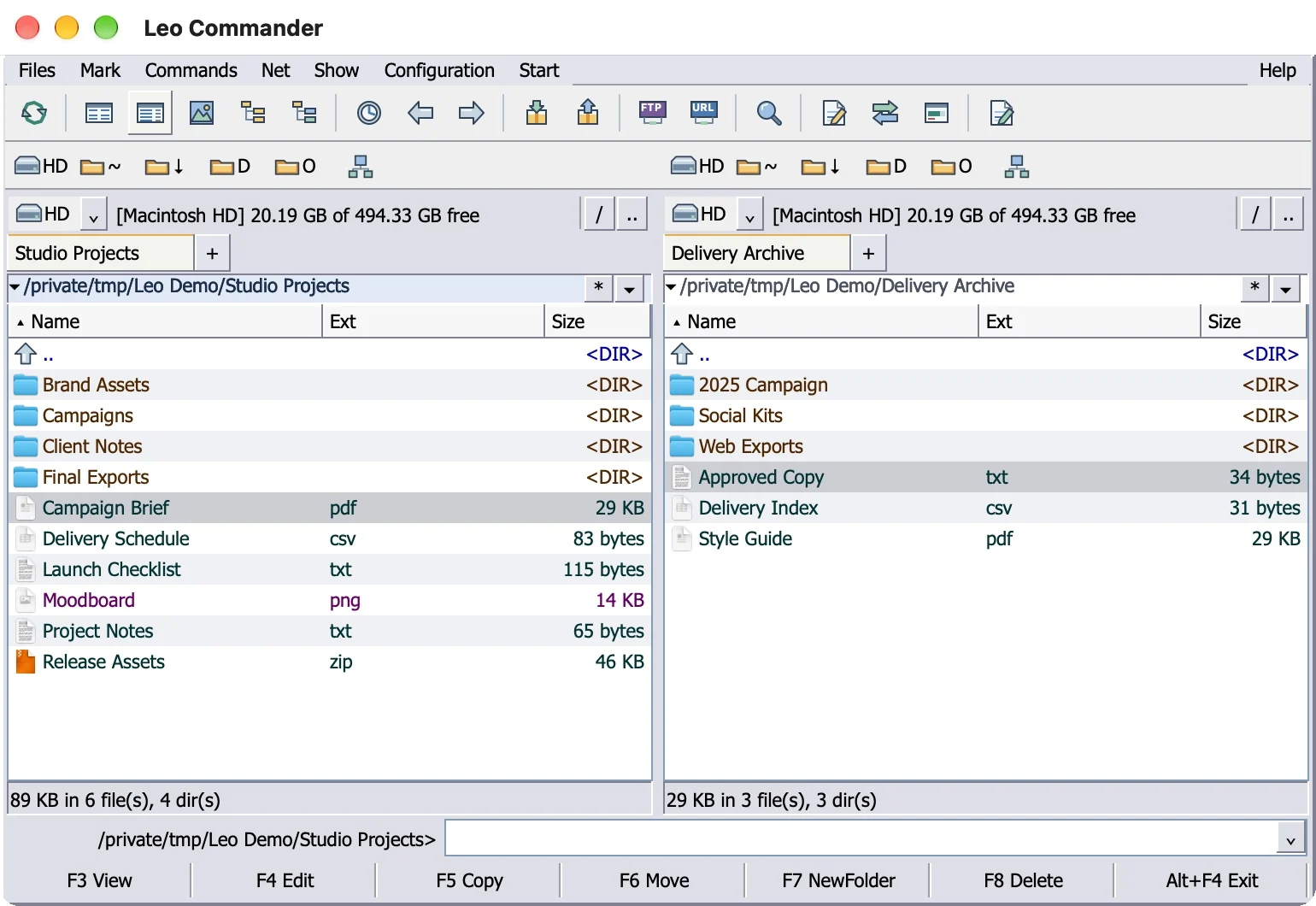
Leo Commander is a native Mac app for Apple silicon that works like Total Commander. Top to bottom, the window holds menus (Files, Mark, Commands, Net, Show, Configuration, Start, Help), a toolbar, drive buttons, two panels, a command line and an
Strong at: F3 views, F4 edits, F5 copies to the other panel, F6 moves, F7 makes a folder, and F8 asks first, then moves items to the Trash. Tab switches panels. Find Files (⌥F7 or ⌘F) searches by name, text or size, also inside ZIP files. Pro adds Multi-Rename with a live preview, Synchronize Directories, Branch View, FTP, SFTP and WebDAV servers in a panel, and custom keyboard shortcuts. Score: 25 of 25.
Watch out for: no plugins, since Total Commander plugins are Windows files and do not load. ZIP is the only archive format so far; RAR and 7z are not supported yet. Server panels copy files but cannot move or edit files on the server, and connections are not saved yet.
Price: free version. Pro is
CRAX Commander
Strong at: the core Total Commander keys in an app made only for the Mac. Tab switches panels, F3 to F7 do the expected jobs, an
Watch out for: the menus use Mac names (File, Edit, View, Command, Go), not the Total Commander names. The official help page says F8 deletes permanently, so it scores No for “F8 deletes to the Trash”. There is no free version: the 10-day demo blocks compression, decompression and settings export. The one-time license includes minor-version updates only, and the direct version needs periodic online license activation.
Price: $25.99 once direct, or $25.49 on the Mac App Store. Needs macOS 12 or later.
Commander One
Strong at: F3 to F8 and a function key bar, in a dual-pane window. The free version includes two panels with unlimited tabs and ZIP support. PRO adds FTP, SFTP and cloud drives such as Dropbox and Google Drive, plus RAR and 7z archives and a terminal emulator. Score: 17 of 25.
Watch out for: no multi-rename, folder sync or branch view in its feature list. The command line and server connections are PRO only. Commander One had one release in the last 12 months.
Price: free, or PRO for $29.99 once. Major upgrades cost extra.
ForkLift
Strong at: servers, sync, archives and multi-rename in one polished app. The ForkLift manual describes the app as a dual pane file manager and file transfer client, and it connects to SFTP, FTP, WebDAV, Amazon S3, Google Drive, Dropbox, SMB and more. F5 and F6 copy and move to the other pane, and Tab switches panes. Score: 15 of 25.
Watch out for: only F5 and F6 behave like Total Commander. There is no
Price: $19.95 with 1 year of updates.
Path Finder
Strong at: a long-running Finder replacement with batch rename, folder sync and a Terminal module, opened from the Window menu. Score: 11 of 25.
Watch out for: two panes is a mode you switch on, with the Dual Pane button in the toolbar or from the View menu. F5 and F6 copy and move to the next pane, but F3 browses in the next pane, F7 compresses and F8 decompresses, so Total Commander habits will misfire. Path Finder is sold as a subscription or a time-limited license.
Price: $29.95 per year, or $32.95 for a
QSpace Pro
Strong at: flexible layouts. QSpace supports 12 pane layouts, switched from the Layout button on the toolbar or with hotkeys, and it has folder sync. Tab moves focus to the next pane. Score: 9 of 25.
Watch out for: no Total Commander keys by default beyond Tab. New folder is ⇧⌘N and delete is ⌘Delete, as in Finder. Server connections, archive browsing and advanced batch rename are paid extensions.
Price: $29.99 once, with extensions extra.
Bloom
Strong at: a refined Finder replacement with a search panel and multi-pane layouts. MacStories named Bloom its Mac App of the Year 2025. All 9 of its 25 points come from outside the 10 Total Commander workflow checks, so read the score as a measure of fit, not polish.
Watch out for: Finder-style keys. Tab opens search, and F5, F6 and F8 are not assigned by default, although Bloom's user guide shows how to assign
Price: $16 once, updates included.
Seven Mac file managers compared in one table
| App | Two panels | Total Commander | Folder sync | Multi-rename | Free version | Price | Score |
|---|---|---|---|---|---|---|---|
| Leo Commander | Always | F3 to F8, plus | Pro | Pro | Yes | Free; Pro | 25/25 |
| CRAX Commander | Yes | F3 to F7 and | Yes | Yes | 10-day demo only | $25.99 once direct, $25.49 on the Mac App Store; minor-version updates only | 21/25 |
| Commander One | Always | F3 to F8, plus | No | No | Yes | Free; PRO $29.99 once | 17/25 |
| ForkLift | Dual pane | F5 and F6 only | Yes | Yes | Trial only | $19.95 with 1 year of updates | 15/25 |
| Path Finder | Mode you switch on | F5 and F6 only | Yes | Yes | Trial only | $29.95 per year or $32.95 for 1 year | 11/25 |
| QSpace Pro | 12 pane layouts | Not in default shortcuts | Yes | Basic; advanced is a paid extension | Trial only | $29.99 once, extensions extra | 9/25 |
| Bloom | Multi-pane layouts | Not assigned by default | No | Yes | Trial only | $16 once, updates included | 9/25 |
Which Finder replacement should you pick?
Match the app to the work you repeat most, not to the longest feature list.
- You spent years in Total Commander on Windows and want the same keys and menus: Leo Commander. The Total Commander alternative for Mac guide compares the workflow in depth.
- You want Total Commander keys at no cost: the free version of Leo Commander. CRAX Commander has the same core keys, but no free version, only a 10-day demo.
- Your day mixes SFTP, S3 and Dropbox with local folders: ForkLift, or Commander One PRO.
- You like Finder's style and want two panes only some of the time: Path Finder.
- You compare several folders at once on a big display: QSpace Pro.
- You love Finder and mainly want better search and a refined design: Bloom.
Does a Finder alternative replace Finder?
No. Finder is part of macOS and stays open the whole time. If Finder stops responding, Apple's fix is to select Finder in the Force Quit window and click Relaunch, not to remove it. Every app in this guide runs alongside Finder.
Some alternatives can step in when another app asks to show a file or folder. Here is what each vendor documents:
- ForkLift: the ForkLift manual gives Terminal commands to set ForkLift 4 as the default file viewer, and notes that the change does not replace the system's open and save dialogs.
- Path Finder: a setting in the General tab of Path Finder's settings makes many actions that would open Finder open Path Finder instead. Finder stays installed, and some system dialogs still show Finder.
- QSpace Pro: the Open Mode setting can send Reveal in Finder to QSpace Pro after a restart. QSpace Desktop can stand in for the Finder Desktop, but the QSpace FAQ says QSpace cannot completely replace Finder at present, and open and save panels are not replaced.
- Bloom: Terminal commands in the user guide make Bloom open when other apps use Reveal in Finder, after a restart. The Desktop is not covered, because Finder manages it.
Try before you buy
Two of the seven apps have a free version: Leo Commander and Commander One. CRAX Commander offers a 10-day demo, and ForkLift, Path Finder, QSpace Pro and Bloom offer a trial only.
Is there a free Finder alternative for Mac?
- Leo Commander's free version includes the two panels with the Total Commander layout and menus, F3 to F8, the command line, drive bar and
F-key bar, folder tabs, history and Favorites, the Brief, Full, Thumbnails and Directory tree views, Find Files (also inside ZIP files), ZIP Pack and Unpack, background copy and move with pause and cancel, Quick Look and thebuilt-in text and hex viewer. - Commander One has a free version with two panels, unlimited tabs and ZIP support. PRO features need a license.
You can test the two-panel way of working before you pay anything: download Leo Commander for Mac and start with the free version.
Sources
- Apple Support: Mac keyboard shortcuts
- Apple Support: How to force an app to quit on Mac
- Apple Support: Rename files, folders, and disks on Mac
- ForkLift 4 manual
- Path Finder support: Make Path Finder your default file manager
Checked November 8, 2026. Leo Commander is an independent app, not affiliated with Ghisler Software GmbH or Apple Inc.


